



2.Quick Start
2.1.Installing the Program
To install Sindy, you must have sufficient permissions on the personal computer to modify data in system folders. If you do not have such permissions, contact the computer administrator, who can assist with the installation.
To install the program:
- Run the distribution file sindy_rus_x_x_x.exe.
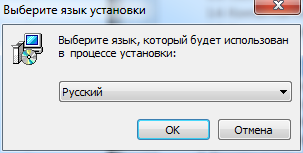
- Select the language of the installation program (this setting is used only for the Sindy installation procedure) and click OK. All subsequent installation steps shown below assume that “Russian” has been selected from the drop-down list in the next window.
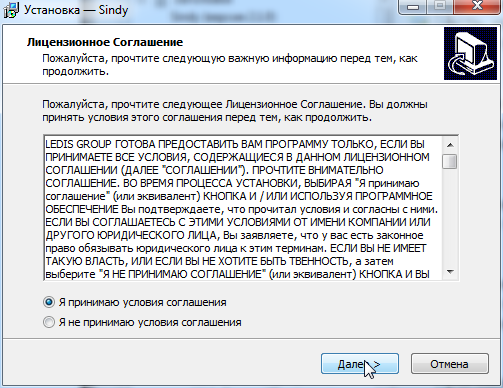
- In the license confirmation window, carefully read the terms defining the agreement between the user and the manufacturer of this software (LeDiS Group). If you do not agree with the license agreement, select “I do not accept the agreement” and click “Next”, or terminate the installation procedure by clicking “Cancel”. If you fully accept the license terms, select “I accept the agreement” and click “Next”.
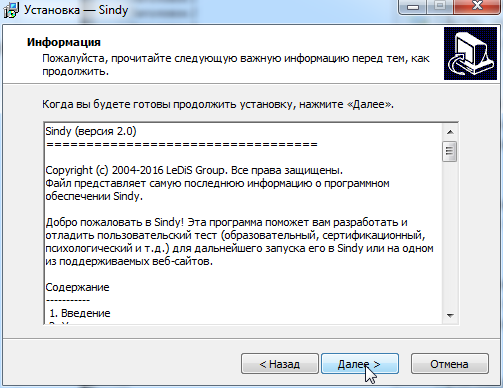
- Carefully read the information shown in the next window and click “Next”.
- Use the “Browse” button to select the computer folder where the program should be installed if you do not want to use the default folder, or leave it unchanged. Click “Next”.
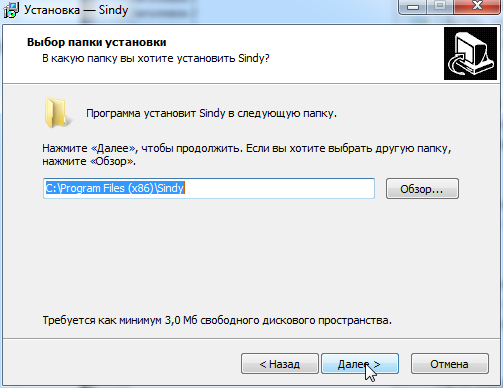
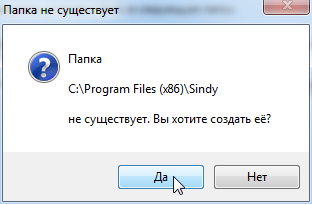
- If the specified folder does not exist, confirm its creation by clicking “Yes”.
- Specify the program group name if you do not want to use the default name, or leave it unchanged. Click “Next”.
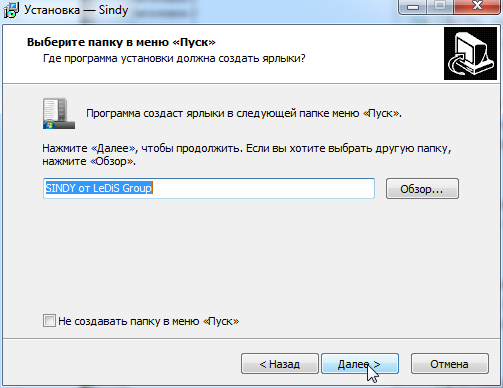
You can also select “Do not create a Start Menu folder” if you do not need a Sindy program group on the computer.
- Confirm the start of the actual installation of Sindy on the computer by clicking “Install”.
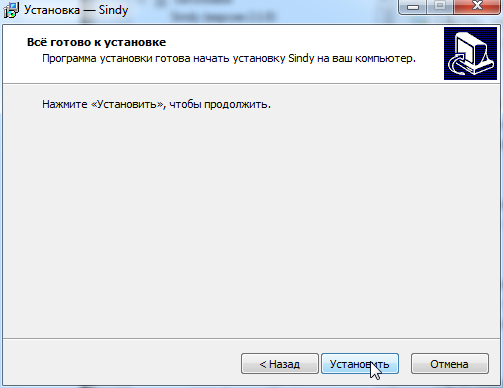
- Wait until the installation program has completely installed Sindy.
- In the installation completion window, select “View readme.txt” if you want to open the document containing additional information about Sindy after installation is complete. To open the license agreement, select “LICENSE file”. Select “Launch Sindy” if you want to start Sindy immediately after installation. Click “Finish” to complete the installation procedure.
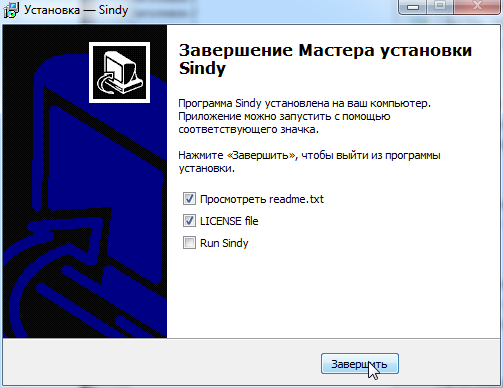
- You have successfully installed Sindy on your computer.
2.2.Starting the Program
To start Sindy, locate the program group specified during installation in the Start menu. In this program group, launch the program named “Sindy”. If creation of the program group was disabled, run the “sindy.exe” file from the folder where the program was installed.
When the program starts, an informational splash screen is displayed briefly.

Immediately after the splash screen appears, the Sindy main window opens.
2.3.Exiting the Program
To exit Sindy, perform one of the following actions:
- Select the main menu item “File -> Exit”
- Use the keyboard shortcut CTRL-E
- Use the keyboard shortcut ALT-F4
- Click the icon

in the upper-right corner of the program’s main window
If you exit the program while a project containing unsaved changes is open, you will be prompted to save those changes.
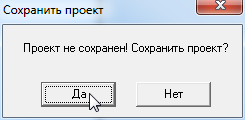
Clicking “Yes” saves the changes to the current project file or starts a special wizard that can be used to create a new project file. Clicking “No” discards changes made since the last time the project was saved or opened. In both cases, after all intermediate operations are completed, the program closes.
2.4.Getting Help
For information on working with Sindy, it is recommended to use:
- The User Guide (this document)
- Context-sensitive help, which can be opened by pressing F1 while working in the program or by selecting “Help -> Help” from the menu
- Information published on the ledisgroup.com website
2.5.System Requirements
Sindy is a 32-bit Windows application. If 32-bit applications are supported, the program can also be used in a 64-bit environment.
Hardware requirements: PC-compatible computer, at least 8 MB of available RAM, at least 10 MB of free hard disk space (HDD), keyboard, mouse, monitor.
Software requirements: 32/64-bit Windows operating system (Windows 98, Windows NT, Windows 2000, Windows Me, Windows XP, Windows Vista, Windows 7,8). Microsoft Internet Explorer (version 5.0 or later) is recommended.